


Batch workflow: spreadsheet to print-ready ZIP
- Prepare your codes in Excel or Google Sheets: put one SKU, asset ID or numeric serial per row in the first column. For sequential batches, fill down numbers (such as
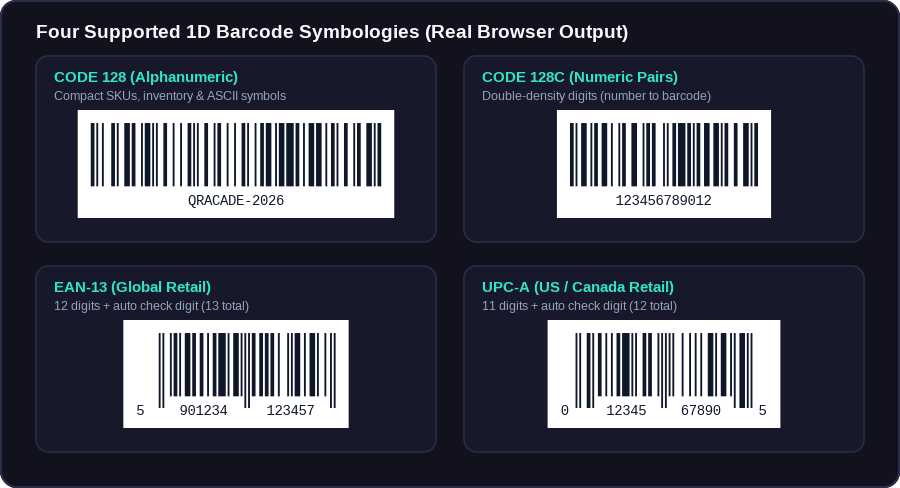
10001to10100) and copy-paste the column directly—or export as.csv. - Pick your symbology and bar dimensions: select CODE 128 for mixed alphanumeric warehouse SKUs or compact numeric series, EAN-13/UPC-A for retail UPC/GTIN tags, or CODE 39 for legacy asset tags.
- Inspect line validation & download ZIP: click Generate barcodes to preview up to 12 rendered SVGs immediately. Any invalid check digit or disallowed character shows its exact line number; click Download SVG ZIP or Download PNG ZIP when ready.
How batch files are named inside the ZIP
Every exported file is prefixed with its three-digit batch order and a clean sanitized value (for example, 001-SKU-1001.svg, 002-SKU-1002.svg) so labels stay sorted in exact spreadsheet order when imported into InDesign Data Merge, Illustrator actions or Avery label layouts.
| Use case | Recommended format | ZIP output |
|---|---|---|
| Clothing & warehouse SKUs (letters + numbers) | CODE 128 | SVG ZIP for Illustrator / label press |
| Sequential serial numbers (digits only) | CODE 128 (auto 128C density) | PNG or SVG ZIP |
| Retail shelf/packaging EAN-13 (12–13 digits) | EAN-13 | SVG ZIP at final label scale |
| US/Canada retail UPC-A (11–12 digits) | UPC-A | SVG ZIP at final label scale |
Generating barcodes from Excel (.xls / .xlsx) & Google Sheets
You do not need an Excel barcode font or VBA macro. Keep your catalog in Microsoft Excel or Google Sheets, copy Column A directly (up to 100 rows per batch), and paste straight into the Bulk textarea—each spreadsheet row becomes one line. For multi-column spreadsheets where product names sit alongside SKUs, choose File → Save As / Download → CSV UTF-8 and click Import CSV above; QRacade parses the first column automatically while skipping extra columns.
Related barcode & QR tools
Single & full barcode studio
Generate single CODE 128, CODE 39, EAN-13, UPC-A or ITF-14 tags.
BarcodesCODE 128 barcode generator
Convert numbers and ASCII SKUs into dense Code 128 labels.
CODE 128UPC-A barcode generator
12-digit North American retail codes & check-digit math.
UPC-ACODE 39 & VIN generator
Wide uppercase asset tags and automotive VIN barcodes.
CODE 39EAN-13 & ISBN-13 generator
13-digit global retail GTINs & Bookland ISBN-13 codes.
EAN-13ITF-14 carton barcode
14-digit GTIN-14 master shipping case barcodes.
ITF-14Garment & hangtag barcodes
Size rules and symbology conventions for retail apparel labels.
RetailFrequently asked questions
How many barcodes can I generate in one batch?
Up to 100 barcodes per batch. Split larger lists into 100-item batches—everything runs locally in your browser without accounts or rate limits.
How does CSV import work for bulk barcodes?
Click Import CSV in the Bulk tab and select any CSV under 1 MB. The first column of each non-empty row populates the batch box.
Should I export my batch as SVG ZIP or PNG ZIP?
Choose SVG ZIP for vector layout tools and sharpest commercial printing; choose PNG ZIP for quick insertion into docs or label portals.
What happens if one line in my list has an invalid character or check digit?
That line is flagged with its line number in the preview so you can fix it before exporting.
Are my SKUs or serial numbers uploaded to a server?
No. Rendering and ZIP compression happen completely offline inside your browser tab.
How do I generate barcodes from Excel or Google Sheets?
Paste Column A straight from Excel or Google Sheets into the Bulk box—or export the sheet as CSV UTF-8 and use Import CSV to extract column A cleanly without installing barcode fonts.